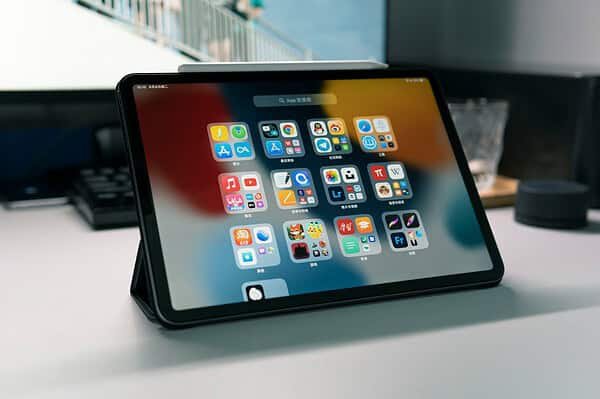
Navigating the full power of your iPad Pro 3rd Gen can feel like unlocking a secret level in your daily routine. More than just a tablet, it's a portable powerhouse for creativity, productivity, and entertainment. Whether you’re a long-time Apple enthusiast or new to the Pro line, there are always hidden gems, workflow enhancements, and crucial troubleshooting steps that can make your experience smoother and more effective. This comprehensive guide will equip you with the essential Tips, Tricks, and Troubleshooting for your iPad Pro 3rd Gen, ensuring you maximize its potential and tackle any bumps along the way.
At a glance: Your iPad Pro 3rd Gen Power-Up
- Master Multitasking: Use Stage Manager, App Library, and fluid drag-and-drop gestures to juggle apps like a pro.
- Unleash Creativity: The Apple Pencil 2 transforms your iPad Pro into a digital canvas and smart notebook, with features like Quick Notes.
- Enhance Your Workflow: Connect external accessories like mice and keyboards, or even use your iPad Pro as a second Mac display with Sidecar.
- Quick Fixes: Most common issues, from frozen screens to Wi-Fi woes, can be resolved with simple steps like a force restart or network reset.
- Stay Updated & Secure: Regular software updates and data backups are your best defense against performance dips and data loss.
Elevating Your Everyday with Smart iPad Pro Tricks
Your iPad Pro 3rd Gen isn't just a device; it's a versatile tool waiting for you to discover its full capabilities. From seamless input options to advanced multitasking, here’s how to truly make it work for you.
Connect and Control: External Accessories & Universal Control
Transform your iPad Pro into a desktop-like workstation by connecting Bluetooth accessories. Grab a Bluetooth mouse, keyboard, or trackpad and pair them via Settings > Bluetooth. It’s incredibly straightforward and opens up a world of comfortable typing and precise navigation.
For those immersed in the Apple ecosystem, Universal Control is a game-changer. Available since iPadOS 15.4 and macOS Monterey 12.3, this feature lets you use a single mouse and keyboard to seamlessly control multiple iPad Pros and Macs side-by-side. Just drag your cursor from your Mac screen directly onto your iPad Pro's display, and your external input devices will instantly switch focus. It feels like magic, but it's just Apple at its best.
Multitasking Masterclass: Beyond Split View
The iPad Pro truly shines when you learn to harness its multitasking prowess. Forget constantly switching apps; there are far more efficient ways.
App Library & Home Screen Organization
The App Library, accessible by swiping to the very end of your Home Screen pages, organizes all your apps automatically into smart categories like "Games" or "Entertainment." You can scroll through it or use the search bar at the top to quickly find what you need.
Want to declutter your Home Screen? Long-press an empty area until icons wiggle, then tap the row of dots at the bottom. This lets you quickly delete entire Home Screen pages or rearrange them by dragging.
Drag & Drop: Moving Content with Ease
Moving text, images, or files between apps is incredibly fluid on the iPad Pro. To drag and drop text, long-press to select it, adjust the selection bars, then press and hold the highlighted text. While keeping that finger pressed, use another finger (or hand) to open your target app. Release your original finger to paste the content. This gesture is most intuitive when using two apps in multitasking mode, side-by-side.
Quick Notes: Instant Ideas, Anywhere
Inspiration strikes at unpredictable moments. Quick Notes allows you to jot down ideas without fully opening the Notes app. Simply swipe up diagonally from the bottom-right corner of your screen (in any orientation). Type or write with your Apple Pencil, then swipe the note off to temporarily collapse it. You can also access Quick Notes from the Control Center, with the Globe key + Q keyboard shortcut, or by tapping a locked screen with your Apple Pencil.
Stage Manager: A Mac-Like Multitasking Experience
Introduced with iPadOS 16, Stage Manager brings a more Mac-like windowing experience to your iPad Pro. It allows you to resize and overlap app windows, creating custom workspaces. Toggle Stage Manager on or off via the Control Center (swipe down from the top-right corner) by tapping the icon that looks like a rectangle with three smaller squares. You can also find it in Settings > Home Screen and Multitasking > Stage Manager. It takes some getting used to, but it’s invaluable for complex workflows.
Spotlight Search: Your Universal Finder
Swipe down from the Home Screen (or even the Lock Screen) to access Spotlight, your iPad's universal search engine. Beyond finding apps, Spotlight can:
- Rearrange, Install, or Delete Apps: Drag an app from Spotlight search results to your Home Screen, or tap and hold for options to delete or install.
- Search Photos: Find specific photos by date, person, or object (e.g., "beach photos summer 2022").
- Get Quick Facts: Look up facts about people, contact information, or even web images (e.g., "Eiffel Tower images").
- Convert & Calculate: Perform unit conversions, currency exchanges, or basic calculations directly in the search bar.
- Find Content Within Apps: Search notes, messages, emails, and more across all your apps.
Unleashing Creativity with the Apple Pencil 2
The Apple Pencil is an indispensable companion for your iPad Pro 3rd Gen, elevating sketching, drawing, note-taking, and even everyday navigation. It's the Apple Pencil 2 that pairs magnetically and charges wirelessly with your 12.9-inch iPad Pro (3rd Gen and newer) or 11-inch iPad Pro (all models). To confirm your iPad model, go to Settings > General > About > Model name.
A standout feature is Scribble, which lets you write in almost any text field, and your iPad Pro instantly converts your handwriting to typed text. This works seamlessly in apps like Notes, Safari search bars, Calendar, and Messages. It’s perfect for those who prefer the tactile feel of writing.
Customization and Productivity Enhancements
Personalize your iPad Pro to make it truly yours and boost your efficiency.
Widgets: Information at a Glance
Widgets deliver quick, glanceable information from your favorite apps right on your Home Screen or in the Today View. To add a widget to your Home Screen, long-press an empty space until the icons wiggle. Tap the "+" button in the upper-left corner, search or scroll for an app's widget, choose your preferred size, customize its function, and tap "Add Widget." You can then drag it to your desired position and tap "Done." The iPad Pro notably supports XL widgets, offering more information at a glance than on an iPhone. You can also access a dedicated Today View with widgets by swiping to the first Home Screen page and swiping left again.
Sidecar: Your Mac's Second Screen
Turn your iPad Pro into a versatile second display for your Mac using Sidecar. This feature, available since macOS Catalina, requires a compatible Mac (e.g., MacBook Pro 2016+, iMac 2017+). Access Sidecar from the display section of your Mac's Control Center. It's fantastic for extending your workspace, mirroring content, or even using your Apple Pencil on your iPad for Mac apps.
Safari Extensions: Power Up Your Browsing
Just like on a Mac, Safari on your iPad Pro supports extensions, bringing enhanced functionality to your web browsing. Think dark mode enablers, robust password managers, or tools to avoid accelerated mobile pages (AMP). You can find and manage extensions by going to Settings > Safari > Extensions > More Extensions, which directs you to the App Store.
Freeform App: Collaborative Canvas
Since iPadOS 16.2, the Freeform app is automatically installed, offering a boundless whiteboard for creative collaboration. Whether you're brainstorming with colleagues or mapping out personal projects, you can use drawing tools, shapes, sticky notes, photos, scanned documents, and more. It supports multiple boards and real-time collaboration, making it ideal for visual thinkers.
The Weather App: A Detailed Forecast
For years, iPad users relied on third-party apps for weather. With iPadOS 16, a dedicated Weather app arrived, providing comprehensive 10-day forecasts, precipitation charts, and detailed metrics like humidity, air quality, wind speed, and sunset/sunrise times.
Apple Music Sing: Karaoke Night, Anywhere
If you're an Apple Music subscriber, your iPad Pro can become a personal karaoke machine. Apple Music Sing uses the built-in lyrics feature to intelligently replace song vocals, allowing you to sing along. You can adjust the vocal volume and find duet settings. Note that this feature is available on the 11-inch iPad Pro (3rd Gen and newer), but for the 12.9-inch iPad Pro, it requires a 5th Gen or newer model. To use it, open the Music app, play a track, tap the Lyrics button (the quotation mark bubble), then tap the Sing button (mic and stars). Press and hold the Sing button and drag the slider to adjust vocal volume.
Troubleshooting Your iPad Pro 3rd Gen: Quick Solutions
Even the most robust devices can encounter hiccups. Most common issues with your iPad Pro 3rd Gen can be resolved with a few simple steps. Here’s how to address them.
Frozen Screen or Unresponsive iPad
This is a common, yet often easily fixed, issue. Since your iPad Pro 3rd Gen doesn't have a Home button, the force restart method is specific:
- Press and quickly release the Volume Up button.
- Then, press and quickly release the Volume Down button.
- Finally, press and hold the Top (Power) button until you see the Apple logo appear. Do not release the button until you see the logo.
This process won't erase any data but can often kick your iPad out of a frozen state.
Wi-Fi Connection Troubles
If your iPad Pro is struggling to connect to Wi-Fi or stay connected, try these steps:
- Check Wi-Fi Settings: Go to
Settings > Wi-Fiand ensure Wi-Fi is toggled on. - Toggle Wi-Fi On/Off: Sometimes a simple reset helps.
- Forget and Reconnect: Tap the "i" icon next to your network in Wi-Fi settings, then "Forget This Network." Re-enter the password. You can even find your Wi-Fi password in
Settings > Wi-Fiby tapping the "i" next to a connected network. - Restart Your Router: Power cycle your Wi-Fi router.
- Reset Network Settings: Go to
Settings > General > Transfer or Reset iPad > Reset > Reset Network Settings. Be aware this will erase all saved Wi-Fi passwords, so have them handy. - Move Closer to the Router: Signal strength can be an issue in larger spaces.
Battery Drain Blues
Is your battery life not what it used to be? Here’s how to optimize it:
- Lower Screen Brightness: This is one of the biggest power consumers. Adjust it from Control Center or
Settings > Display & Brightness. - Disable Background App Refresh: Go to
Settings > General > Background App Refreshand turn it off for apps you don't need constantly updating. - Manage Location Services: Review
Settings > Privacy & Security > Location Servicesand set app access to "While Using the App" or "Never" where possible. - Check Battery Usage: In
Settings > Battery, you can see which apps are consuming the most power.
App Crashes and Glitches
When an app misbehaves:
- Close and Reopen: Swipe up from the bottom of the screen to open the app switcher, then swipe the problematic app off the screen to close it. Reopen it.
- Delete and Reinstall: Long-press the app icon, tap "Remove App," then "Delete App." Reinstall it from the App Store.
- Check for App Updates: Head to the App Store, tap your profile icon, and look for available updates.
- Update iPadOS: Ensure your iPad Pro is running the latest software version (see below).
Initial Setup and Activation Issues
If you're having trouble getting started with your new iPad Pro:
- Check Internet Connection: A stable Wi-Fi or cellular connection is crucial for activation.
- Restart iPad: Perform a force restart as described above.
- Update iPadOS: If possible, connect to a computer and update via Finder (macOS) or iTunes (Windows).
- Contact Apple Support: If all else fails, Apple's support team can help with activation server issues.
Essential Troubleshooting Toolkit
These steps are often your first line of defense for most iPad Pro issues.
- Restart Your iPad: Hold the Top (Power) button, then swipe the "slide to power off" slider. Wait 30 seconds, then press the Top button again to turn it back on.
- Force Restart: As described for a frozen screen (Volume Up, Volume Down, then hold Top button).
- Update iPadOS: Go to
Settings > General > Software Update. Keeping your software current often resolves bugs and improves performance. - Check Storage Space: Low storage can cause performance issues. Check
Settings > General > iPad Storageand delete old photos, videos, or unused apps. - Close Unused Apps: Swipe up from the bottom of the screen and swipe away apps you're not actively using.
- Reset All Settings: This resets system settings without erasing your data. Go to
Settings > General > Transfer or Reset iPad > Reset > Reset All Settings. You'll need to reconfigure things like Wi-Fi and wallpaper, but your apps and data remain.
Advanced Solutions & Preventative Measures
For more persistent problems or to maintain optimal performance, consider these strategies.
Software & Hardware Deep Dive
- Reinstall iOS: For stubborn software issues, you can reinstall iPadOS using a computer. Back up your device first, then connect it to your computer and use Finder or iTunes to restore it. This is a more drastic step that wipes your iPad and reinstalls the operating system.
- Charging Issues: If your iPad isn't charging, check the charging cable and port for debris or damage. Try a different Apple-certified cable and power adapter.
- Screen Responsiveness: If specific areas of the screen are unresponsive, a force restart is the first step. If the issue persists, it might indicate a hardware problem requiring Apple Support.
Performance Optimization
- Reduce Motion & Transparency Effects: In
Settings > Accessibility > Motion, turn on "Reduce Motion" and "Reduce Transparency." This can help older devices feel snappier. - Clear Safari Cache: If Safari is slow or buggy, clear its cache in
Settings > Safari > Clear History and Website Data.
Backup and Security: Your Data's Safety Net
- Regular Backups: Protect your valuable data with regular backups to iCloud (
Settings > Your Name > iCloud > iCloud Backup) or to your computer. - Find My iPad: Enable Find My iPad (
Settings > Your Name > Find My > Find My iPad) to locate a lost device, lock it, or erase it remotely. - Strong Passcode & Face ID: Always use a strong passcode and enable Face ID for secure and convenient unlocking.
- Two-Factor Authentication: Enhance your Apple ID security with two-factor authentication.
- App Store Only: Only download apps from the official App Store to minimize security risks.
Quick Answers to Common iPad Pro Questions
Here are some rapid-fire answers to frequently asked questions about your iPad Pro.
- Connecting a Stylus Pen: The Apple Pencil 2 connects magnetically and pairs automatically with your iPad Pro 3rd Gen. For other Bluetooth styluses, pair them via
Settings > Bluetooth. - iPad Generations & Specs: Find your "Model Name" and "Serial Number" in
Settings > General > About. - Clipboard Access: The iPad doesn't have a visible "clipboard" app. After copying text or images, simply tap and hold in a text field, then select "Paste."
- Microphone & Serial Number: The microphone is usually near the camera or along the top edge. The serial number is in
Settings > General > Aboutand often etched on the back of the device near the bottom. - Screen Mirroring to iPad: To mirror an iPhone to an iPad, both need to be on the same Wi-Fi network. From your iPhone's Control Center, tap "Screen Mirroring" and select your iPad.
- Calling Emergency Services (911): Yes, you can call 911 from an iPad via Wi-Fi calling through your carrier, or using VoIP apps like FaceTime or Skype, even without a cellular plan.
- Offline Movie Downloads: Many streaming services (Netflix, Amazon Prime Video, Disney+) allow direct downloads to your iPad for offline viewing.
- Locking Screen for Tracing/Drawing: Use Guided Access (
Settings > Accessibility > Guided Access). Triple-click the Top button to start/end a session and set a passcode. - Drawing Apps: Procreate is highly recommended for artists. Other great options include Adobe Fresco, Autodesk Sketchbook, and ArtRage.
- iPad Storage (64GB): While 64GB can work for browsing, email, and light gaming, it can quickly fill up with movies, music, or large apps. Consider higher storage options if you plan extensive use.
- iPad Water Resistance: iPads are not waterproof. They can handle minor splashes but should not be submerged or exposed to heavy rain.
- Turning Off Private Browsing: In Safari, tap the tabs icon (two overlapping squares) in the bottom right, tap "Private" at the bottom, then "Done."
- Finding Wi-Fi Password: In
Settings > Wi-Fi, tap the "i" icon next to a previously connected network; the password will be under "Password" after you authenticate with Face ID or passcode. - Volume Control: Use the physical volume buttons on the side of your iPad.
- Measuring iPad Size: iPads are measured diagonally across the screen in inches. The 3rd Gen iPad Pro is available in 11-inch and 12.9-inch displays.
Maximize Your iPad Pro Experience
Your iPad Pro 3rd Gen is a powerful and adaptable device. By embracing its unique features—from the precision of the Apple Pencil 2 to the fluidity of Stage Manager—and knowing how to troubleshoot common issues, you'll ensure it remains an indispensable part of your digital life. Don't be afraid to experiment with new tricks; the iPad Pro is designed for exploration and innovation.
For more detailed information on your device's capabilities and to explore its full range, you can always Explore the third-gen iPad Pro. Keep your software updated, back up your data regularly, and enjoy the seamless experience of a truly professional tablet.